12 min read
How to Automatically Organize Gmail Without Losing Important Emails
- guide
- gmail
- productivity
On this page
Some emails are useful, but you don’t need to see them the moment they arrive. Newsletters, receipts, automated notifications. If you leave them in the Inbox, they bury the emails that matter. If you delete them or unsubscribe, you lose something you wanted to keep.
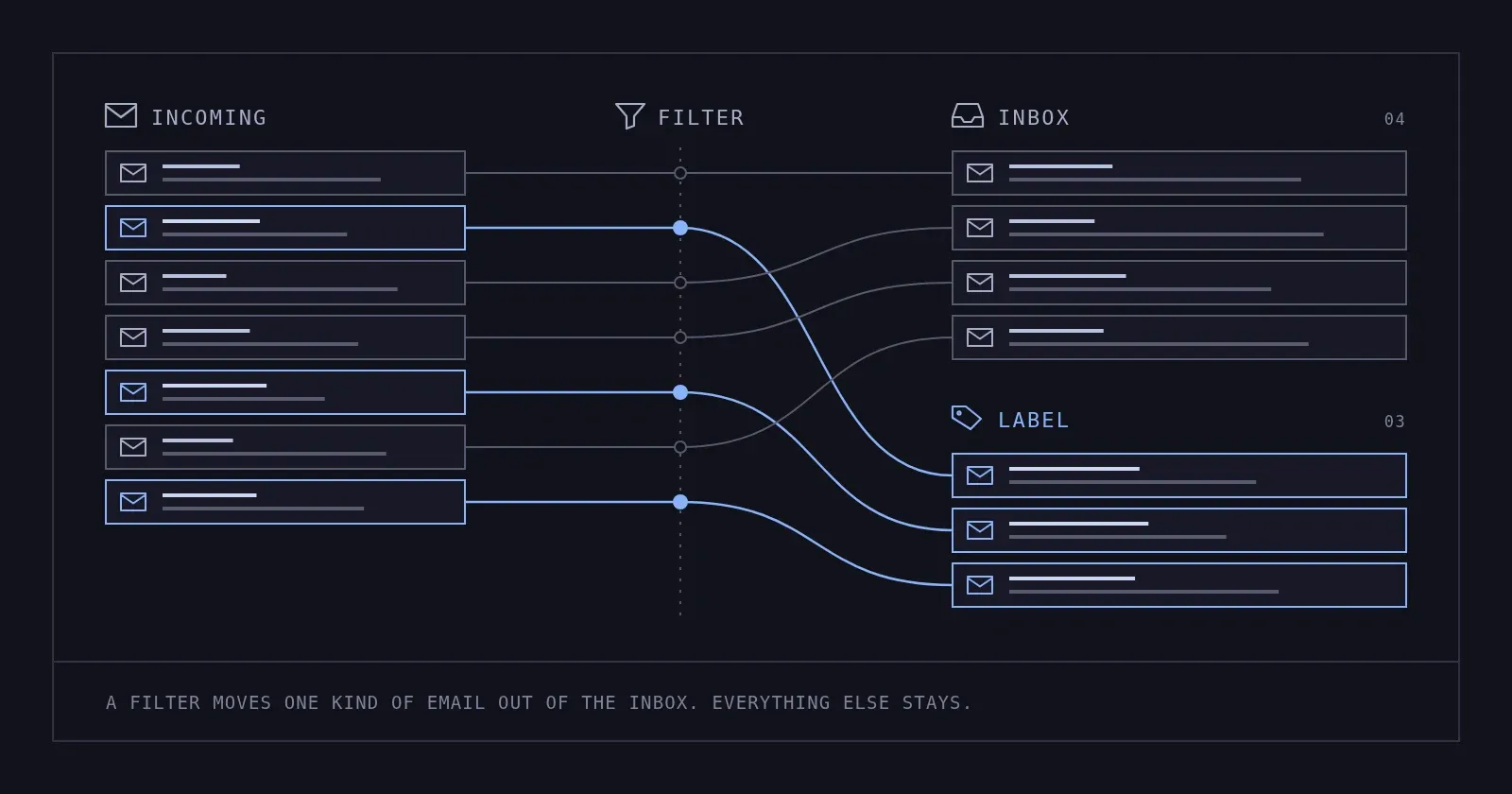
Gmail has a third option. A filter can move those emails out of the Inbox by itself and put them under a label of their own. Nothing is deleted, and everything else stays where it is.
This post shows how to set that up, using a real case from my own Inbox.
How I ran into this
I use ChatGPT Codex with my GitHub repositories, and it sends a lot of notification emails.
I wanted those notifications. They are useful, so I didn’t want to turn them off, unsubscribe or delete them. I just didn’t want them all in my main Inbox.
The hard part was that I also get other GitHub notifications, like pull request emails, and those are important. I absolutely didn’t want them to disappear from my Inbox.
So I asked ChatGPT if Gmail could move only those specific emails somewhere else and leave the rest alone. We worked through it together: found the right search, created a filter and checked the result. The answer was two features Gmail already has, filters and custom labels.
My case happened to be about GitHub, but the problem isn’t. The same steps work for any service, newsletter or automated sender whose emails you want to keep in a separate place.
The idea in short
Three things work together:
- A search that finds exactly the emails you want to move.
- A filter that runs this search on your mail and does something with every match.
- A label that gives those emails their own place.
Gmail filters are built on Gmail search. If a search finds the right emails, a filter made from that search will act on the same emails. So most of the work is finding the right search.
What a filter can match
You can match emails by:
- A sender or an email address.
from:[email protected] - Words in the subject.
subject:invoice, orsubject:"weekly digest"for an exact phrase. - Words anywhere in the email. Type the word, or put a phrase in quotes:
"your order has shipped". - A combination. Put conditions next to each other and an email has to match all of them:
from:[email protected] subject:receipt.
These are examples of the format, not queries to copy. Google lists the rest of the search operators on its Refine searches in Gmail (opens in a new tab) page.
The combination is the important one. Many services send every kind of email from one address, so the address alone is too broad. Adding a second condition is what lets you pick out one kind and leave the others. That was exactly my situation.
My example: one address, two kinds of email
Every GitHub notification comes from the same email address. The Codex ones look like this:
- Sender name:
chatgpt-codex-connector[bot] - Sender address:
[email protected]
A pull request email from a teammate comes from [email protected] too. A filter on the address alone would take every GitHub email out of my Inbox, including the ones I need.
This is the search we used:
from:[email protected] "chatgpt-codex-connector"It has two parts:
from:[email protected]matches the sender address. On its own, this matches every GitHub notification."chatgpt-codex-connector"narrows it down to emails that contain the bot’s name. The quotes make Gmail look for that exact phrase.
An email has to match both parts. That is what separates the Codex notifications from the rest, without touching other GitHub emails.
Step by step
The steps are the same for any kind of email. I’ll use my example values, and you replace them with your own.
Step 1: Look at one of the emails
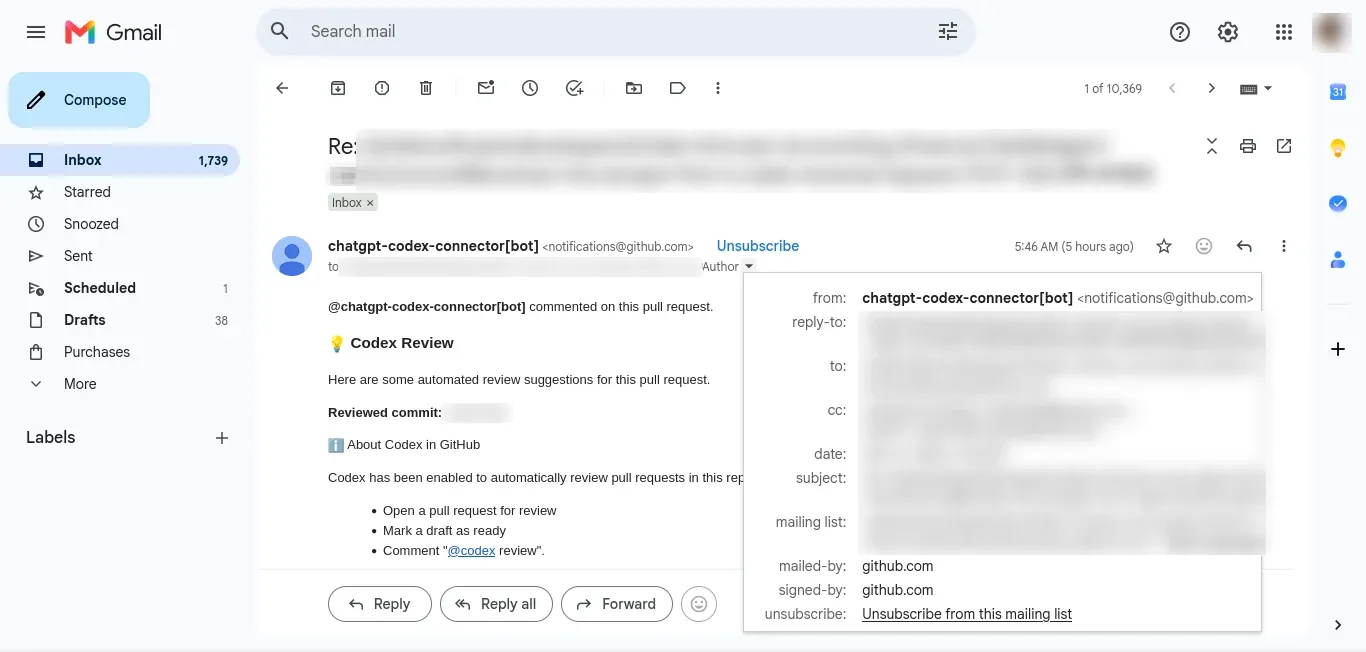
Open one of the emails you want to move and check who it’s from. On desktop, click the small arrow at the end of the “to” line under the sender’s name to show the details.
Look for something that all of these emails have and your other emails don’t: the address, a name, a word in the subject, a phrase in the text.
Mine showed the name chatgpt-codex-connector[bot] and the address [email protected]. The address was shared with other emails. The name was not.
Step 2: Test the search
Before creating anything, type your search into the Gmail search box and press Enter:
from:[email protected] "chatgpt-codex-connector"Scroll through the results and make sure they are only the emails you want to move.
If your search has more than one condition, also try the broad one alone:
from:[email protected]For me, the first search returned only the Codex notifications. The second returned my other GitHub emails too. That told me the second condition was doing its job.
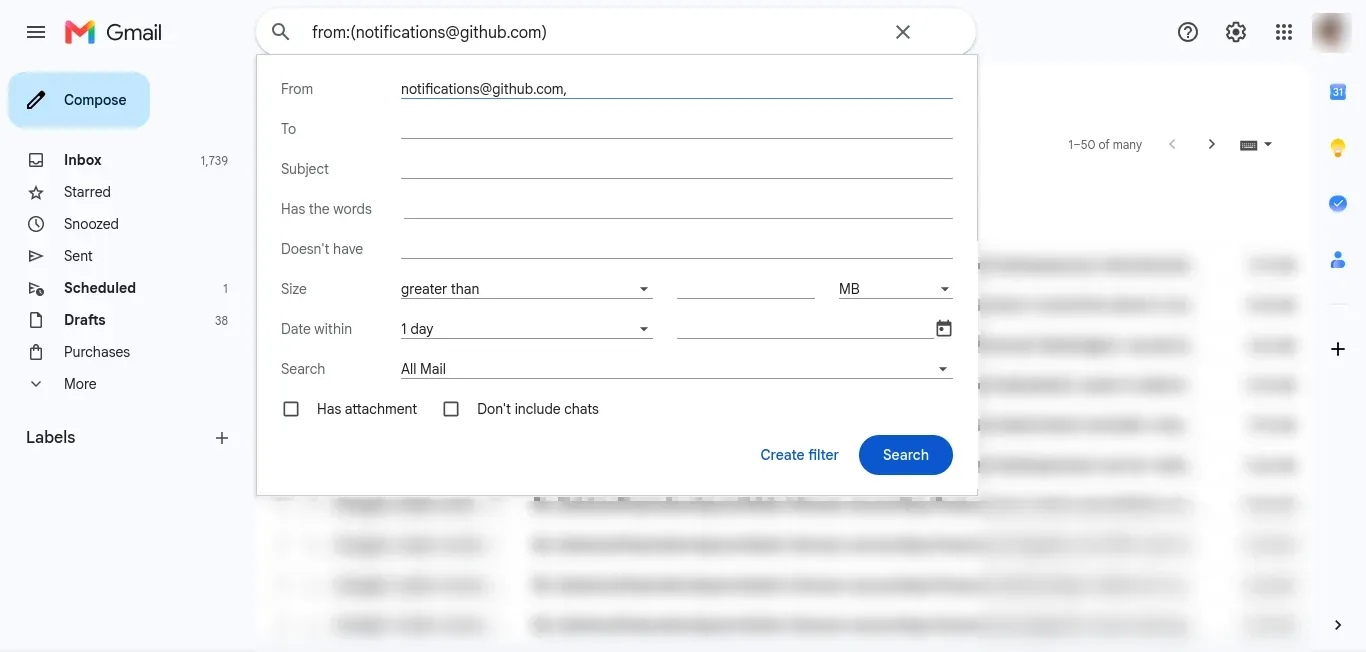
With the address alone, the count at the top right says “1–50 of many”. With the second condition added, it dropped to a few dozen, as the screenshot in step 4 shows.
Step 3: Open Gmail on a computer
You need Gmail in a desktop browser for the next part. Google’s help page for creating filters (opens in a new tab) describes it as something you do on your computer. Once the filter exists, it works for your account everywhere, including the phone app.
Step 4: Create the filter
- Open Gmail (opens in a new tab).
- In the search box at the top, click the Show search options icon (the sliders on the right side of the box).
- Fill in the fields that match your search. There are fields for From, Subject and Has the words, among others. I entered
[email protected]in From and"chatgpt-codex-connector", with the quotes, in Has the words. - Click Search if you want to check the results one more time, then open the search options again.
- At the bottom of the form, click Create filter.
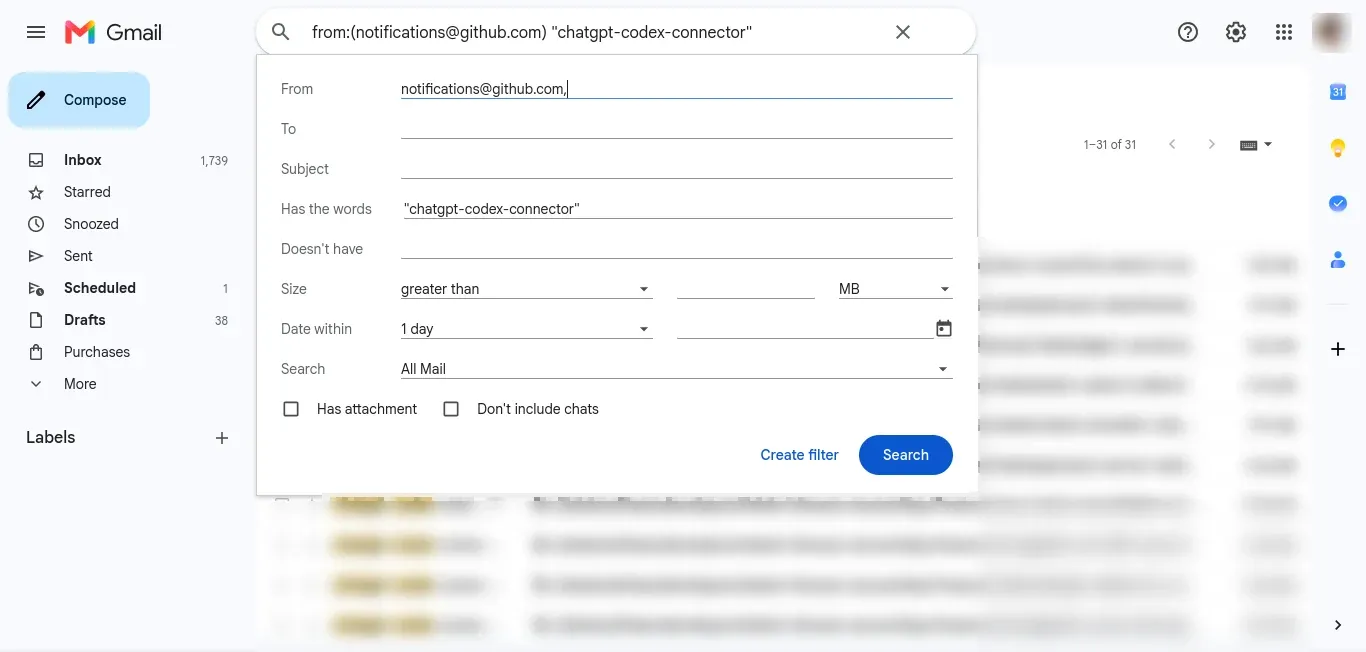
Gmail rewrites the search box as from:([email protected]) "chatgpt-codex-connector". It means the same thing.
Step 5: Choose what the filter does
Gmail now asks what to do with matching emails. Tick these three:
- Skip the Inbox (Archive it)
- Apply the label, then choose New label… from the dropdown and give it a name. Mine is
Codex Github. - Also apply filter to matching conversations
Leave Delete it unticked.
Then click Create filter.
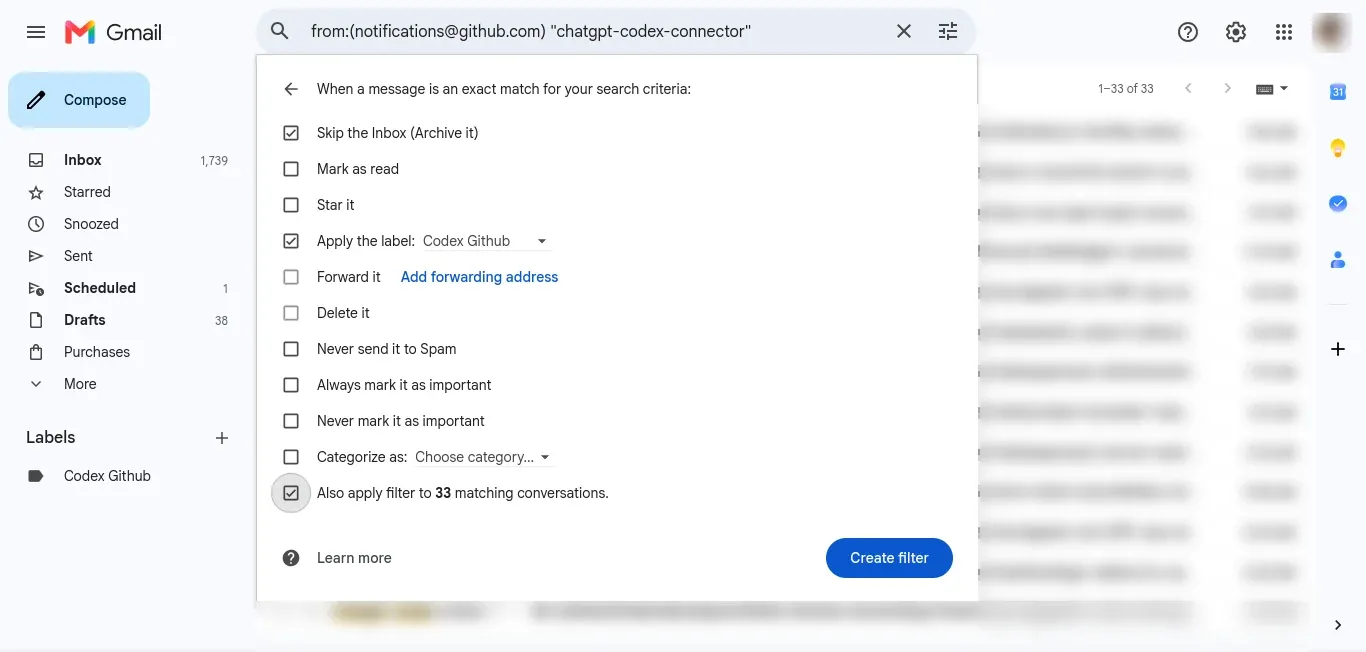
The third option is for the emails you already have. Gmail shows a number next to it. For me it said 33 matching conversations.
Why archive and not delete? Archiving only takes the email out of the Inbox. It’s still in your account, under the label and in All Mail. Deleting sends it to Trash, and Gmail empties Trash after 30 days (opens in a new tab). If your search ever matches something it shouldn’t, an archived email is still there. A deleted one might not be.
Step 6: Check the result
- Click your new label in the left sidebar. The existing matching conversations should be there.
- Go back to the Inbox. Those conversations should be gone from it.
- Check that the emails you wanted to keep are still in the Inbox.
- Open the Gmail app on your phone, tap the menu at the top left, and find the label in the list.
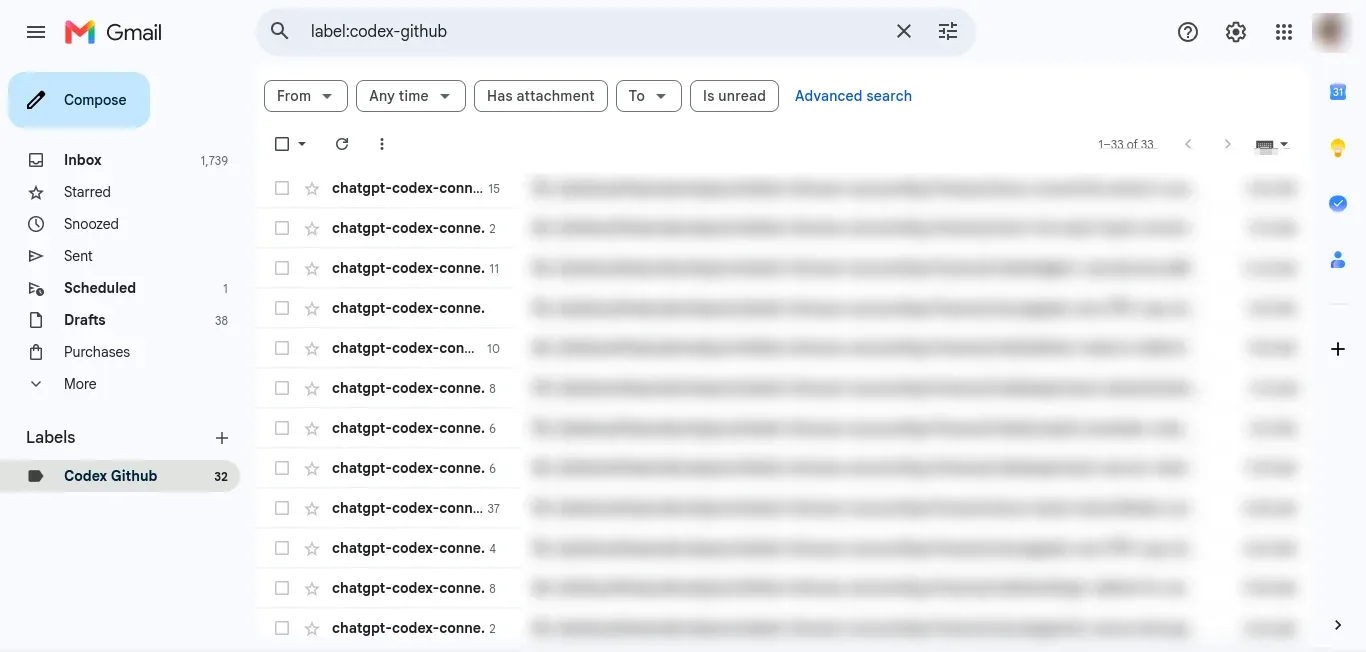
If you want to change or remove the filter later, it’s in Settings > See all settings > Filters and Blocked Addresses.
What I tested
This is what we did and saw, in order:
- Opened a real Codex notification and looked at the sender.
- Saw that the address was
[email protected]and the name waschatgpt-codex-connector[bot]. - Searched for the address alone. It returned other GitHub notifications too.
- Ran the combined search. It returned only the Codex notifications.
- Started creating the filter. Gmail found 33 existing matching conversations.
- Turned on Skip the Inbox (Archive it), applied the
Codex Githublabel, and applied the filter to the 33 matching conversations. Delete it stayed off. - Gmail confirmed that the filter was created.
- Opened the Gmail app on Android. The label was there, with the conversations under it.
- Waited for new Codex notifications. They skipped the Inbox and went straight to the label.
So the filter works both ways: it organized the conversations I already had, and it catches new ones as they arrive.
You can use this for more than GitHub notifications
My search only works for my emails. "chatgpt-codex-connector" means nothing for a newsletter or a receipt. What carries over is the method: look at the email, find what makes it different, test the search, then create the filter.
Some places where it fits:
- Newsletters from one sender. A search on the sender’s address is usually enough. Check which address your newsletter really comes from.
- Notifications from project management tools. These often share one address for everything, like mine did. Look for a word in the subject that only the noisy ones have.
- Receipts and payment confirmations. One label for all of them makes them easy to find later. Each shop or bank words its emails differently, so you may need a filter per sender.
- Notifications from development platforms. Build results, deploy messages, bot comments. This is the case from this post.
- Emails with specific keywords. A project name or a client name, in the subject or in the text.
- Everything from one service. If you never need a service’s emails in the Inbox, a filter on its address alone moves all of them, and they are still there when you want them.
In every case, open a few of your own emails and build the search from what you see in them. Then test it in the search box before you turn it into a filter.
Things to keep in mind
- A word can appear anywhere in the email. My filter matches any GitHub notification that contains
chatgpt-codex-connector, not only ones sent by the bot. If a person writes that name in a comment, that email would match too. It didn’t happen in my search results, but it’s a good reason to archive and not delete. - Replies are checked again. Google’s filter page says a reply to a filtered message is only filtered if it matches the same search. So an important reply in the same conversation can still reach the Inbox.
- Check the label now and then, at least in the first few days, to make sure nothing you wanted has ended up there.
A few Gmail concepts
Labels are not folders
Google says it directly: “Labels are different from folders.” (opens in a new tab) A file sits in one folder. An email can have more than one label at the same time, so it isn’t really “in” any of them.
Adding a label doesn’t move or delete anything. That’s why the filter needs two actions: one to add the label, and one to skip the Inbox.
Labels are also private. Only you see them, and the people you email don’t get them. They show up in the phone app too, and Google has the same help page for Android (opens in a new tab).
Archive vs delete
- Archive takes the email out of the Inbox and keeps it. You can find it in All Mail, under its labels, or with search.
- Delete moves the email to Trash, where it’s removed for good after 30 days.
For this kind of setup, archiving is the safer choice. A wrong filter that archives is easy to fix. A wrong filter that deletes may not be.
Filters
A filter is a saved search with actions attached. The search can look at the sender, the subject, words in the email and other conditions. When a new email matches, Gmail does what you chose: label it, archive it, star it, forward it or delete it. You can also apply the filter once to the emails you already have, which is what the third checkbox in step 5 does.
Custom labels vs Gmail’s own categories
Gmail has its own inbox categories, like Promotions, Social and Updates. Gmail decides what goes into them, and you can’t create a new category of your own.
A custom label with your own filter gives you more control. You write the rule, so you can split one kind of email from the other emails of the same sender, which a category can’t do. It also doesn’t depend on the category tabs at all. You don’t need to turn on Promotions, Social or Updates for any of this.
Does this need a paid account?
No. Filters and labels are regular Gmail features, and they work on a free personal Gmail account. Google’s help pages for filters (opens in a new tab) and labels (opens in a new tab) don’t mention any paid plan. You don’t need Google Workspace.
On the limit, Google’s label page says: “You can create up to 5,000 labels.” It doesn’t give a different number for free accounts and Workspace accounts, so I won’t make one up.
One thing that can be confusing: Google Workspace also has classification labels (opens in a new tab). Those are a different feature. An administrator creates them in the Admin console for a whole organization, and people apply them to Drive files and Gmail messages. They have nothing to do with the personal labels in this post.
Wrapping up
You don’t have to choose between a cluttered Inbox and deleted emails. One search, one filter and one label are enough:
- Find what makes the emails different.
- Test it in Gmail search.
- Create a filter that skips the Inbox and applies a label.
- Leave Delete it off.
My Codex notifications now have their own place, my other GitHub emails still reach the Inbox, and nothing was deleted.
References
- Create rules to filter your emails (opens in a new tab), Gmail Help
- Refine searches in Gmail (opens in a new tab), Gmail Help
- Create & manage labels in Gmail (Computer) (opens in a new tab), Gmail Help
- Create & manage labels in Gmail (Android) (opens in a new tab), Gmail Help
- Organize & archive email (opens in a new tab), Gmail Help
- Create classification labels for your organization (opens in a new tab), Google Workspace Admin Help